Easier manuscript transcription for TEI-XML
Saga-Scribe keeps the transcription and the encoding separate. The user writes the text in a plain shorthand, marking line breaks, abbreviations, unclear readings, and editorial changes with a few short symbols; the application compiles it into well-formed TEI, and can produce the facsimile, diplomatic, and normalized readings from a single transcription based on semi-automatic lemmatization. It is intended for editors who would rather spend their time reading and annotating than matching angle brackets.
Saga-Scribe is primarily designed for and directed at editors working with Old Norse texts and includes first-class support for the MENOTA sub-standard and lemmatization of Old Norse texts via fetching headwords from the Dictionary of Old Norse Prose, hosted at the University of Copenhagen. Use for editions using other languages is possible, but currently has no support for proper lemmatization outside directly editing the generated XML.
Windows, macOS and Linux · Free and Open Source
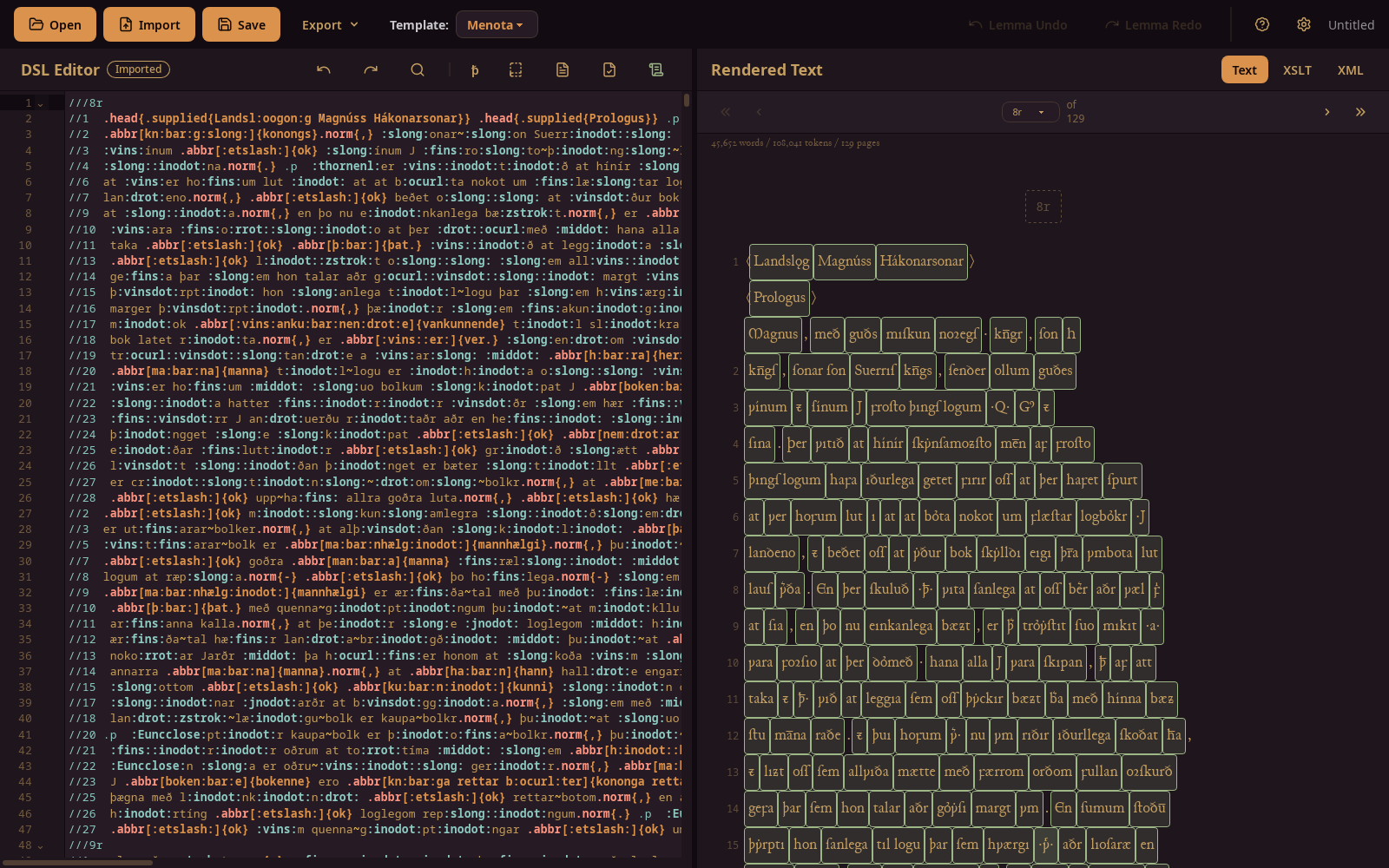
The shorthand on the left, the reading text on the right.
- and MENOTA
- TEI P5and MENOTA
- MUFI characters
- ~2,000MUFI characters
- MENOTA levels
- 3MENOTA levels
- free software
- GPL-3.0free software
Main Feature
The shorthand does the nesting for you.
When manually writing TEI-XML files, a large part of what the editor needs to input to get a valid file is boilerplate XML-tags that make the un-transformed text hard to read and cost time to write and manage. By compiling a shorthand into compliant TEI-XML, the input transcription becomes easier to read, making it easier to spot mistakes and stay mentally with the text, rather than chasing brackets. The shorthand strikes a balance between human-readiblity and power, e.g. letting you insert external entities, like those used in the MENOTA standard, and giving you access to all the relevant XML-tags. Care is taken to ensure more commonly used options have an easier shorthand, please let us know over in the issue tracker if you have need for more and have suggestions for better abbreviations!
- No nesting to track. Markers are written line by line, where they occur.
- Word marking is handled for you, including words broken across a line or page.
- Errors are visible. Invalid shorthand is underlined in the editor and refuses to export.
///1r //1 Hér hefr upp sǫgu .abbr[kgs]{konungs} ?{Haralds}? ins hár~//2fagra
[...3<ok>] -{hans}- +{sona}+
Markers for page and line breaks, an abbreviation, an unclear reading, a word spanning a line, a gap with supplied text, a deletion and an addition.
<class="tok-tag">pb n="1r"/>
<class="tok-tag">lb n="1"/>
<class="tok-tag">w>Hér</class="tok-tag">w>
<class="tok-tag">w>hefr</class="tok-tag">w>
<class="tok-tag">w>upp</class="tok-tag">w>
<class="tok-tag">w>sǫgu</class="tok-tag">w>
<class="tok-tag">w><class="tok-tag">choice><class="tok-tag">abbr>kgs</class="tok-tag">abbr><class="tok-tag">expan>konungs</class="tok-tag">expan></class="tok-tag">choice></class="tok-tag">w>
<class="tok-tag">w><class="tok-tag">unclear>Haralds</class="tok-tag">unclear></class="tok-tag">w>
<class="tok-tag">w>ins</class="tok-tag">w>
<class="tok-tag">w>hár<class="tok-tag">lb n="2"/>fagra</class="tok-tag">w>
Word division, choice, unclear, gap, supplied, del and add are all derived from the markers above.
Features
Transcription, annotation, validation, and export.
These all live in one window, arranged around the way an edition is actually prepared rather than around a generic XML editor.
Shorthand for better reading
Textual features encoded by TEI-XML like abbreviations, insertions, and word-level annotation are abstracted via a shorthand designed to let the editor read the flowing text more naturally.
Live preview
The compiled document follows your typing, shown as reading text, through your own XSLT stylesheet, or as the raw TEI-XML. Manuscripts with page breaks can be read a page at a time.
Assisted lemmatization and annotation
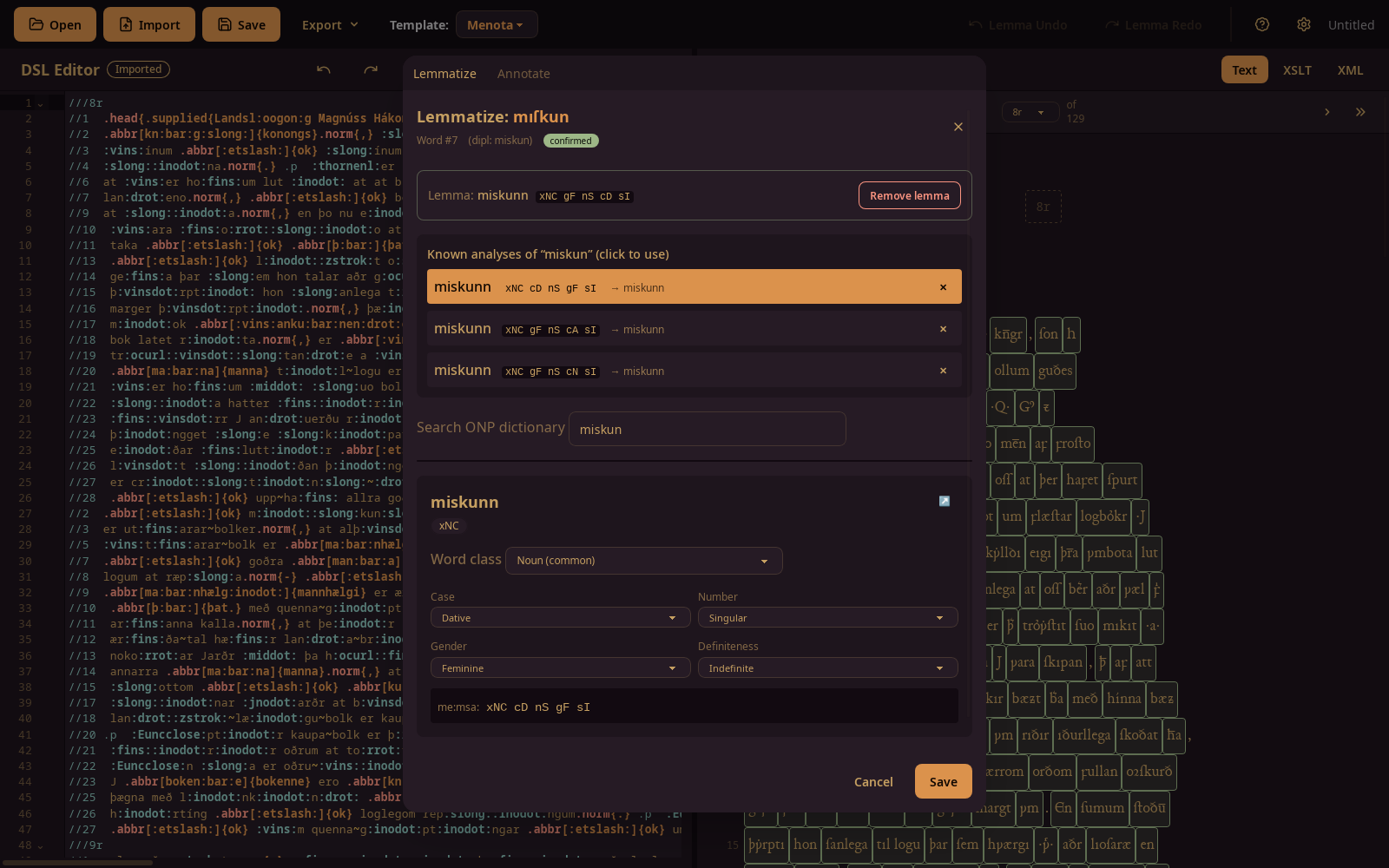
Inspired by the MenotaBlitz annotation interface, clicking on a word in the rendered view lets you assign a lemma and concrete morpho-syntactic analysis, based on ONP data. Previously lemmatized forms are given as suggestions.
MENOTA levels
One transcription becomes facsimile, diplomatic and normalized text. Special characters are MENOTA/MUFI entities, rendered in Junicode and resolved for the diplomatic and normalized levels.
Edit existing TEI files
Open a TEI-XML file and edit it in the shorthand. Only the passages you change are rewritten; everything else, including markup the shorthand cannot express, is preserved as-is.
Validate as you work
Check the compiled document against the TEI P5 (tei_all) schema or the MENOTA P5 RelaxNG schema without leaving the application. Errors are listed with their line numbers.
TEI, HTML and PDF
Export the complete TEI-XML, or transform it with your stylesheet into a self-contained HTML file or a typeset PDF with page margins and numbers. Lemmata can be saved and exported for use by others as a dictionary.
Templates for any edition
Templates supply the header and closing markup and decide how the text is encoded: word wrapping, automatic line numbers, and multi-level MENOTA output. Make or import your own to match an edition’s conventions.
Offline and local
A Tauri desktop application for Windows, macOS and Linux. Projects, lemmas and annotations stay on your computer; the only network request is an optional ONP lookup.
A typical session
From manuscript to edition in four steps
- 01
Choose a template
Start from TEI P5 or MENOTA, or make your own template with the header and encoding rules your edition needs.
- 02
Transcribe
Write the text with inline markers for breaks, abbreviations and editorial interventions. The preview keeps up as you type.
- 03
Lemmatize and annotate
Click words in the preview to add lemmas, morphological analyses and notes. Analyses are reused for later occurrences.
- 04
Export
Validate, then export TEI-XML, a self-contained HTML file, or a typeset PDF. Projects keep everything together in one .teis file.
The first transcription tutorial walks through the whole workflow with a short example.
Screenshots
The text and its scholarship, side by side
Transcribe on the left while the reading text follows on the right. Words become lemmas, analyses and annotations without leaving the document.
Existing editions
Your TEI file stays your file
Open an existing TEI-XML document, edit it in the shorthand, and save. Only the passages you changed are rewritten. The header, comments, namespaces and markup the shorthand cannot express are carried over as-is. Metadata, such as editor information, document name and title, or manuscript metadata can be added seperately, and appears in the TEI-XML in the way you would expect.
- Changes that do not affect the encoding, such as whitespace in the shorthand, do not change the file.
- Lemmas you confirm are written into the words' attributes; the rest of the file is untouched.
- If the shorthand contains an error, save and export refuse to write an incomplete document.
Install
Download Saga-Scribe 0.7.0
The latest release is on GitHub. Installation takes a moment; the application and your projects then work entirely offline.
The builds are not code-signed yet.
Your system will warn you the first time you open Saga-Scribe. The installation notes explain what to do on each platform. On institutional hardware, ask your IT department to review the application before installing it.
Want to try what is coming next? The nightly build is made from the development version. Do not use it with original project files.
Documentation
Learn the shorthand, or look up a single marker
The documentation covers installation, a first transcription, every shorthand construct, lemmatization and the MENOTA analysis codes, templates, metadata, importing and export. It is written for editors, not programmers.